Clock, Date and Weather Widget
aacWeather
3.744.00 Reviews
- Version
- 1.1.3
- Installs
- 100.00K
- Age Rating
- Everyone
Screenshots
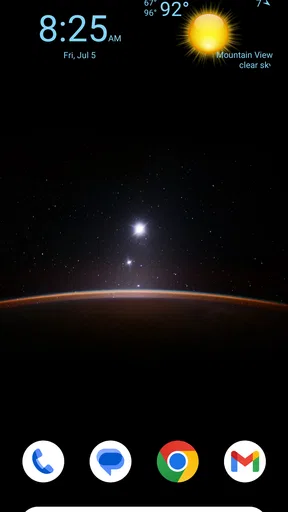
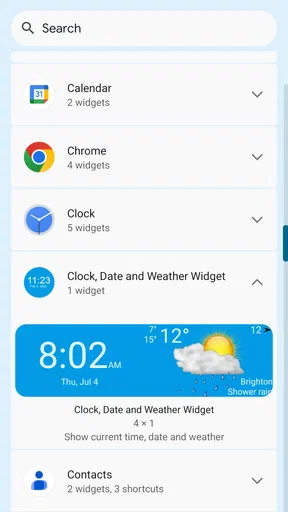
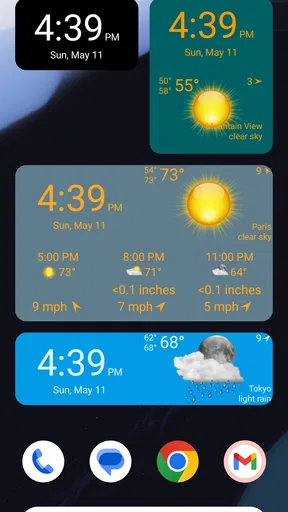
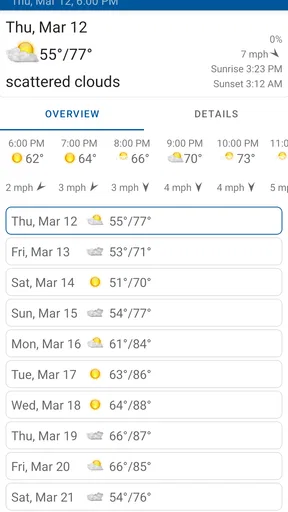
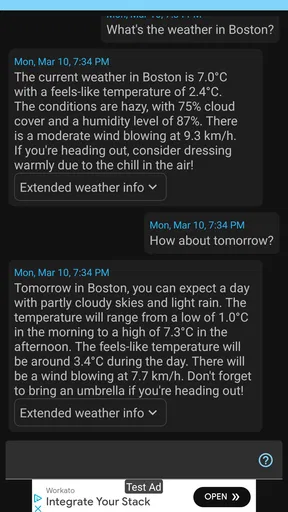
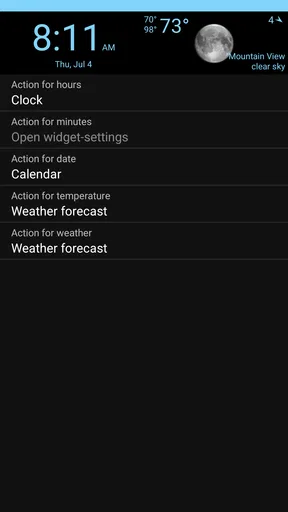
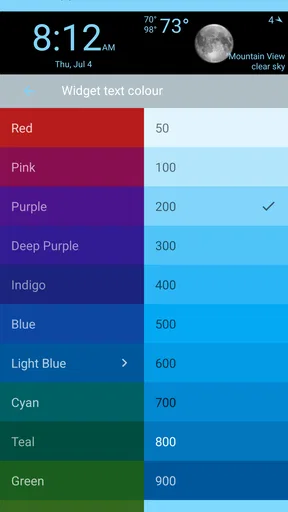
Our Review of Clock, Date and Weather Widget
 Analysis by Appyee
I often unlock my phone for one small reason: to check the time, confirm the date, or see whether I need a jacket. Then I end up opening another app, scanning notifications, and losing the original purpose of the unlock. Clock, Date and Weather Widget is built around removing that repeated detour. It puts the information I am most likely to check directly on the home screen, where it can be read before I open anything else.
That sounds modest, and it is. This is not a complete weather service or a productivity system pretending to be one. It is a focused weather app for people who want a glanceable combination of clock, date, and current conditions. After using it, I see its value less as “more information” and more as less friction during small daily decisions. The app is free, aimed at Everyone, and comes from aac. Its average rating is 3.7 from around 551 ratings, while its reach has passed 100K installs.
Why a simple home-screen glance can save time
The recurring problem here is not that phones lack clocks or weather forecasts. Android already displays the time, and many phones include weather panels or let me add widgets from other services. The problem is that those pieces are often separated, visually inconsistent, or hidden behind a swipe. If I want the date and current weather together, I may need to use a calendar widget, a weather widget, and the status bar at the same time.
This app takes a narrower approach. Its store summary describes a digital clock, date, and current weather on the home screen, and that combination is exactly what makes it useful. I can see whether it is early or late, which day I am dealing with, and what the conditions are without opening a full forecast screen. For a person who checks these details many times a day, the saved effort is small per glance but meaningful over a week.
I especially like the idea for people who use their phone as a bedside clock, keep it on a desk, or regularly leave home in a hurry. A large, readable home-screen element can answer the first practical questions of the morning: what time is it, what date is it, and what is the weather doing right now? That is more useful than a decorative widget that looks attractive but makes me open another app for the information I actually wanted.
The first setup should be treated as a layout decision
My first useful recommendation is to place the widget where the thumb or eye naturally lands, rather than automatically accepting the first empty space on the launcher. If the widget is buried on a secondary page, it loses much of its purpose. I would try the main home screen first, then check whether its size leaves enough room for the icons and shortcuts I use every day.
This is also where expectations matter. A home-screen widget is only helpful when its text remains comfortable to read at a glance. Making it extremely small may preserve space, but it can turn a quick check into the same squinting exercise the app was meant to avoid. Making it too large can push useful shortcuts away. The best arrangement depends on the launcher and screen size, so I would spend a minute testing the balance instead of judging the app from its default placement.
Because the app is designed around current weather rather than a full forecasting workflow, I would set it up for awareness, not for detailed planning. Before a long trip, outdoor event, or commute that depends on changing conditions, I would still open a dedicated weather service. This widget is strongest when the question is immediate: “What is it like outside now?” It is less suitable when the question is “What will happen hour by hour?”
Where it fits into an ordinary day
A realistic morning use is simple. I wake up, tap the phone or look at the screen, and check the time, date, and weather before choosing clothes. If the current conditions look unpleasant, I can decide to take an umbrella or add a layer before leaving the bedroom. I do not need to search through a forecast app just to answer that first question.
At work, the widget can help when the phone is resting beside a monitor. I may glance at it before stepping out for lunch, walking to a meeting, or deciding whether to eat outside. The benefit is not a sophisticated forecast; it is avoiding the repeated sequence of unlocking, finding an app, waiting for it to load, and returning to the task.
It can also help with date awareness. People who work across midnight, manage appointments, or frequently write dates may appreciate seeing the calendar date beside the clock. That detail is easy to overlook when the status bar shows only time. I would not call this a replacement for a calendar, but it can prevent the small mistake of assuming the wrong day when planning or replying to a message.
Another useful scenario is travel within a familiar area. At a train station, outside a school, or while leaving a shop, a quick look at the home screen can confirm the current conditions without turning a short wait into a full browsing session. The trade-off is that the widget’s value depends on the weather information being current enough for the situation. For safety-critical decisions, I would verify conditions through a more detailed source.
What it removes from the usual routine
The main friction removed is app switching. A separate weather application may provide radar, hourly predictions, alerts, maps, and location tools, but all that depth also introduces extra taps. A clock application may be more configurable, while a calendar widget may show appointments more effectively. Clock, Date and Weather Widget is appealing precisely because it combines three glance-level facts without asking me to build that arrangement myself.
It is also less mentally demanding than maintaining several widgets. Multiple widgets can create a crowded home screen, and each one may use a different visual style. A single focused widget gives the page a clearer purpose. That matters to me because the best home screen is not necessarily the one with the most information; it is the one that lets me identify the needed information immediately.
There is a practical trade-off here. Combining clock, date, and weather means the widget cannot devote all its space to one category. Someone who wants a detailed forecast may find the weather portion too limited, while someone who wants a highly customized clock may prefer a dedicated clock tool. The app saves space and taps by giving each item a compact role, but it does not aim to dominate any one of them.
Useful habits that make the widget more effective
One non-obvious tip is to judge it while standing, not only while editing the home screen. A layout that looks fine when the phone is close to my face may be hard to read when the device is on a desk. I would place it, lock the phone, return to the launcher, and test the glance I would actually make during a busy moment. That reveals whether the widget is genuinely saving time or merely adding another visual element.
A second tip is to keep the widget near the edge of the first screen only if that matches the way I hold the phone. A central position may be easier to see, but it can interfere with the icons I tap most often. A corner can work better for one-handed use, while a higher position may be easier to read when the phone is propped up. The app’s usefulness depends heavily on this physical placement, so setup is part of the experience rather than an afterthought.
A third insight is to use it as a trigger for a deeper check, not as a substitute for one. If the current weather looks uncertain, the glance tells me whether I should investigate further. That creates a sensible two-stage workflow: the widget handles routine awareness, and a full weather service handles decisions involving forecasts, travel, or changing conditions. This keeps the home screen quick without encouraging overconfidence in a compact display.
I would also avoid filling every available space around it. The widget works best when the surrounding layout gives the eye a clear stopping point. If it is surrounded by dense folders, badges, and unrelated panels, the information may take longer to locate. That is not a fault unique to the app, but it is an important part of deciding whether the home-screen format will actually reduce distraction.
How it compares with built-in and full weather alternatives
The built-in clock is enough for anyone who only wants the time. The built-in date may already appear on some launchers, and many Android devices offer a weather glance through a search panel or system widget. In that situation, installing another utility makes sense only if this app presents the combination more clearly or fits the home screen better.
Compared with a full weather application, this one is quicker but shallower by design. A dedicated weather app is the better choice for hourly planning, extended forecasts, severe-weather information, maps, or location-heavy use. I would choose this widget when I want current conditions beside the time and date, then keep a full weather app available for occasions when the detail matters.
Compared with a collection of separate widgets, the advantage is simplicity. One focused installation can be easier to arrange than several independent panels. The disadvantage is reduced specialization: a dedicated calendar widget may be better for appointments, and a dedicated clock widget may offer more control over appearance. This app is therefore best understood as a practical compromise, not a universal replacement for every home-screen tool.
Small limitations worth considering before installing
The rating of 3.7 suggests a mixed experience rather than universal satisfaction, and I think that is understandable for a utility whose success depends on personal launcher preferences. If the widget does not match the look of the rest of the home screen, or if its information feels too compact, the benefit can disappear quickly. The concept is clear, but the right fit depends on how much space I have and how much detail I expect.
Weather information can also be more demanding than a static clock. Current conditions are useful only when the location and update behavior suit my routine. Since the widget is intended for a quick current-weather glance, I would not rely on it alone for decisions where an outdated condition could cause a problem. That is a normal limitation of compact weather displays, but it is important to keep the boundary clear.
The app is free to install, with in-app purchases listed at $5.99 per item. That makes trying the basic experience relatively easy, but I would check what any optional purchase changes before paying. For a simple clock-and-weather need, the free starting point is the important part of the decision; the paid option should only matter if it removes a limitation I personally encounter.
It runs on Android 6.0 and later, so compatibility should cover many older devices as well as newer ones. The current version is 1.1.3, and the app was released on April 27, 2023. Those details make it relevant for someone seeking a lightweight home-screen utility rather than a large, constantly expanding weather platform, although I would still test how it behaves with my particular launcher.
Who should use it, and who should skip it
I would recommend Clock, Date and Weather Widget to someone who repeatedly checks the same three facts and wants them together. It is particularly suitable for a clean, glance-first home screen, a desk phone, a simple morning routine, or an older Android device where I do not want a heavy weather experience. The app’s narrow purpose is its strength when my needs are equally narrow.
I would skip it if I mainly need detailed forecasts, radar, weather alerts, calendar appointments, or extensive visual customization. I would also skip it if my phone already has a built-in widget that shows the same information in a clearer arrangement. Adding another widget is not automatically an improvement; the app earns its place only when it makes the first glance faster or more readable.
My final view is positive but measured. This is a useful small tool from aac that addresses a repetitive annoyance rather than trying to become an all-purpose weather platform. It saves time by placing the clock, date, and current weather where I naturally look, and it can make a home screen feel more purposeful. I would install it for quick daily awareness, keep a fuller weather app for serious planning, and spend a little care on placement and readability. If that is exactly the gap in your routine, its simplicity is the feature; if you want depth, the usual dedicated alternatives will serve you better.
Verdict
Strengths of Clock, Date and Weather Widget
- Clean widget design fits well with most home screens.
- Shows essential weather details at a quick glance.
- Offers useful date and time customization options.
- Weather information updates automatically in the background.
- Lightweight app with minimal impact on device storage.
Limitations of Clock, Date and Weather Widget
- Some customization features may require in-app purchases.
- Weather accuracy depends on the selected location provider.
- Frequent updates may increase battery use on some devices.
- Widgets can take up considerable space on smaller screens.
- Some users may find the interface crowded with many options.
Similar Picks in This Category
View All
Weather - By Xiaomi
Xiaomi Inc.4.1

Weather & Radar Forecast
WetterOnline4.8

Weather
OneLouder Apps4.6

AccuWeather: Weather Radar
AccuWeather3.6

The Weather Channel - Radar
The Weather Channel4.6

1Weather Forecasts & Radar
OneLouder Apps4.3
Frequently Asked Questions
What is Clock, Date and Weather Widget?
Clock, Date and Weather Widget is a customizable home-screen widget that combines the current time, date, and local weather information in one convenient display. After adding it to your Android or iOS home screen, you can usually view essential details without opening a separate app. Its exact appearance and available options may depend on your device, operating system, location settings, and the widget version installed.
How accurate is the weather information in the widget?
The widget generally relies on weather data supplied by an online weather service, so accuracy depends on the provider, your selected location, and how frequently the information is updated. Forecasts should be treated as helpful guidance rather than a guarantee. For the best results, allow location access when requested, maintain an internet connection, and check that the displayed city or coordinates match your actual location.
Does Clock, Date and Weather Widget require location and internet permissions?
Location permission may be requested if you want the widget to detect your current city automatically and provide relevant local conditions. Internet access is normally needed to retrieve updated weather data, although the clock and date can continue working offline. If you prefer greater privacy, you may be able to deny location access and select a city manually, depending on the app and your device settings.
Can I customize the clock, date, weather details, and widget appearance?
Customization options can vary, but widgets of this type commonly allow users to adjust the style, color, transparency, size, layout, and information shown. Some versions may offer different clock formats, date arrangements, temperature units, or weather icons. Before downloading, review the app’s screenshots and feature description, because certain themes, advanced settings, or personalization tools may be limited to a premium version.
Will the widget affect battery life or performance?
Clock, Date and Weather Widget is usually designed to remain lightweight, but weather updates, location tracking, animations, and frequent background refreshes can consume additional battery and data. You can often reduce the impact by choosing a longer update interval, disabling automatic location detection, or restricting background activity. On older devices, large or highly animated widgets may also use slightly more system resources.
